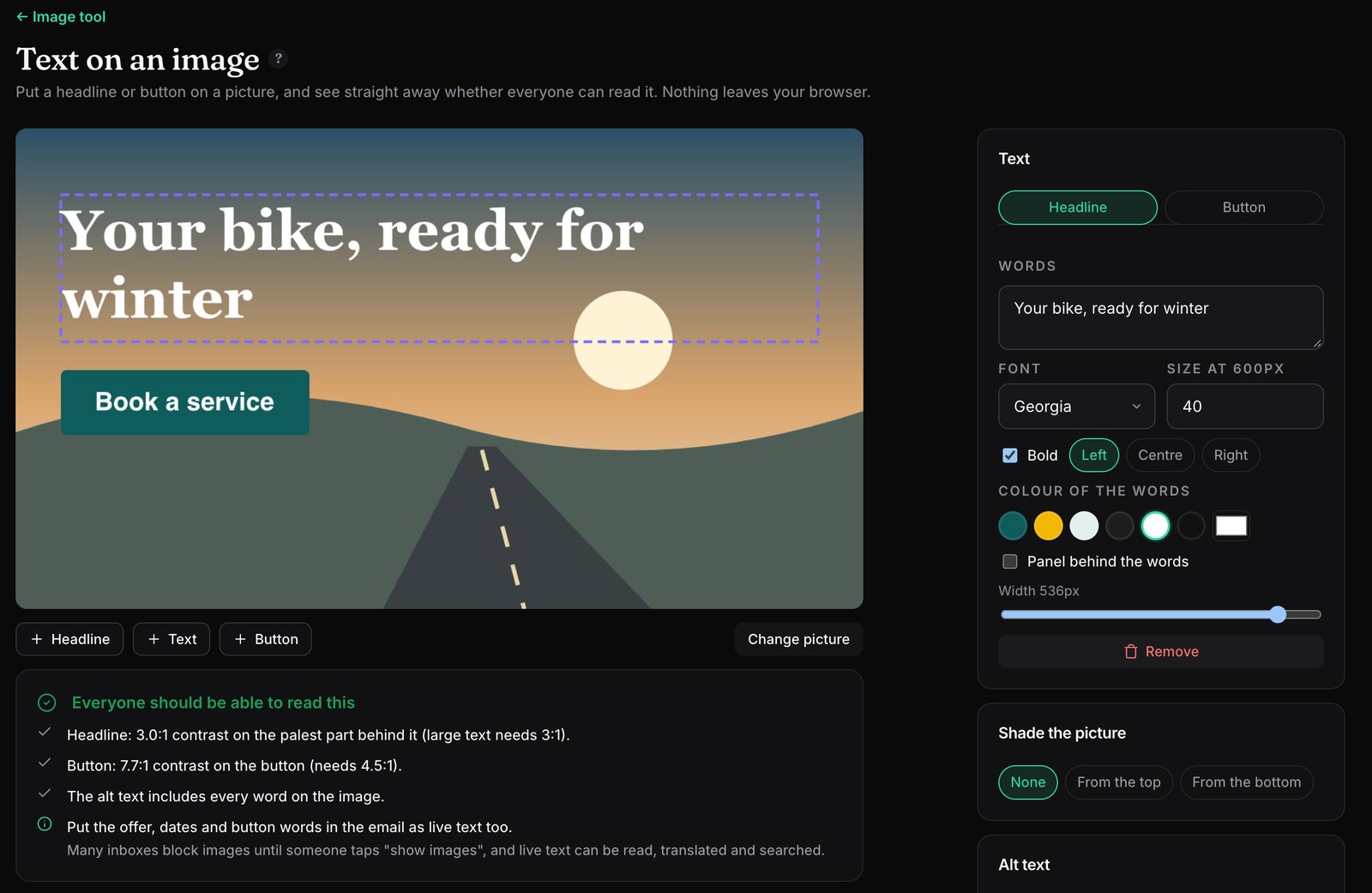
Words on a photo are where email accessibility most often goes wrong. White text that looked fine on the designer's screen disappears over a pale sky, the words are too small once the image shrinks on a phone, and people using screen readers or with images switched off get nothing at all.
How it works
- Drop in a picture. It's shown at your email's width, from your Brand Kit (600px if you haven't set one).
- Add your words. A headline, text or a button, in your brand fonts, palette and button style. Drag them into place; arrow keys nudge.
- Fix what the checks find. Add a panel behind the words, or shade the top or bottom of the picture.
- Export. Download at 2× (sharp on phones) or 1×, as JPG or PNG, or save it to the team's images.
Checks, each with a fix
- Contrast against the real picture: measured against the pixels behind each line, using the palest tenth, so one bright patch counts but a stray pixel doesn't. Large text needs 3:1 and smaller text 4.5:1 (WCAG). When text fails, it suggests a brand colour that passes, or how strong a panel behind it needs to be.
- Button words are checked against the button's colour.
- Size: text under 14px at your email's width is flagged as hard to read on a phone.
- Alt text follows your words automatically, so people who can't see the image still get the message.
It all happens in your browser: the picture is only uploaded if you save it to the team's images.
The team's images
Studio keeps a shared set of pictures for mock-ups and wireframes: hero shots, product photos, logos. Drop or paste them in, give each a name and alt text, and pick them from any image box in a mock-up; the alt text comes with them. Your email platform still holds the images in your live emails.
Why I built it this way
Most contrast checkers ask for two colours. A photo doesn't have one background colour, so I built a check that looks at the picture itself. These are the choices I made, and why.
- The palest tenth, not the average. Averaging everything behind a headline hides the one bright patch that makes it unreadable; using the single palest pixel fails almost everything because of a stray speck. Measuring against the palest 10% of what's behind each line is the compromise that matches what people actually struggle to read.
- A fix with every failure. When text fails, it suggests a colour from your own palette that passes, or the lightest panel behind the words that would make it pass, rather than just a red cross.
- Alt text that follows the words. Words in an image are invisible to screen readers and to anyone with images switched off, so the alt text fills itself with your words until you edit it.
- Nothing leaves your browser. The picture is drawn and measured on your own computer, and only uploaded if you choose to save it to the team's images.
The screenshot above is an honest example: the headline passes at 3.0:1, right on the line for large text. I'd still shade the top of that picture before sending it, and the tool has a button for exactly that.
Pricing
Text on an image is included on every plan, including Free. The team's images hold 50 MB on Free and 1 GB on paid plans. See the pricing page.
Questions
Is the picture uploaded?
No. Everything happens in your browser. The picture is only uploaded if you choose to save it to the team's images.
Which contrast standard does it use?
WCAG: 4.5:1 for normal text and 3:1 for large text (24px, or 19px bold), measured against the picture behind each line of text.
Can it check a picture that already has words on it?
Contrast can only be measured for text placed in the tool. For an image that already has words, the AI description in the image tool picks out the words for your alt text, and you check the colours by eye.
Should important words be in an image at all?
Keep key messages and calls to action as live text in the email where you can. When words must go on an image, make them readable and put them in the alt text.

Liam Kane is an email and marketing automation specialist with over ten years in marketing and seven in email, planning and building campaigns on Marketo, Bloomreach and Silverpop. He built Mailfois, so read this with that in mind. More about Liam.